

Press a key. Get a suggested answer.
Send a screenshot of your quiz to the AI model you choose and see its suggestion on the page. Connect your own Gemini, OpenAI or compatible API account.
Your API key is required. Provider charges may apply; no AI credits are included.
Preview of how answers are displayed
Simulated display with a sample question. No AI request is made and nothing is captured. In the real extension the panel stays for 15 seconds.
What happens when you press the key
You start each request. The screenshot goes directly to your selected provider.
Kept on your device
API keys and settings stay in your browser’s local storage (chrome.storage.local), without sync or extra encryption. Screenshots and answer history are not saved.
Use an HTTPS address for a compatible server. Plain HTTP sends your key and screenshots unencrypted.
Read the privacy policy-
You press Alt + Z, X or C
On Mac it is Option. The solve buttons in the popup work too. Each key runs the model you assigned to that slot.
In your browser -
It captures the visible tab
Only the visible area of the active tab, and only when you trigger it. Anything on screen can be included, not just the question.
In your browser -
Your provider answers
The screenshot is sent to your selected API using your key. There is no developer-operated backend. Your provider’s fees and data retention rules apply.
Leaves your browser -
A suggestion appears on the page
Normal shows a panel for 15 seconds; Stealth uses a compact display for 8. Review the suggestion and answer yourself. The extension never clicks or submits.
In your browser
Three keys, three models.
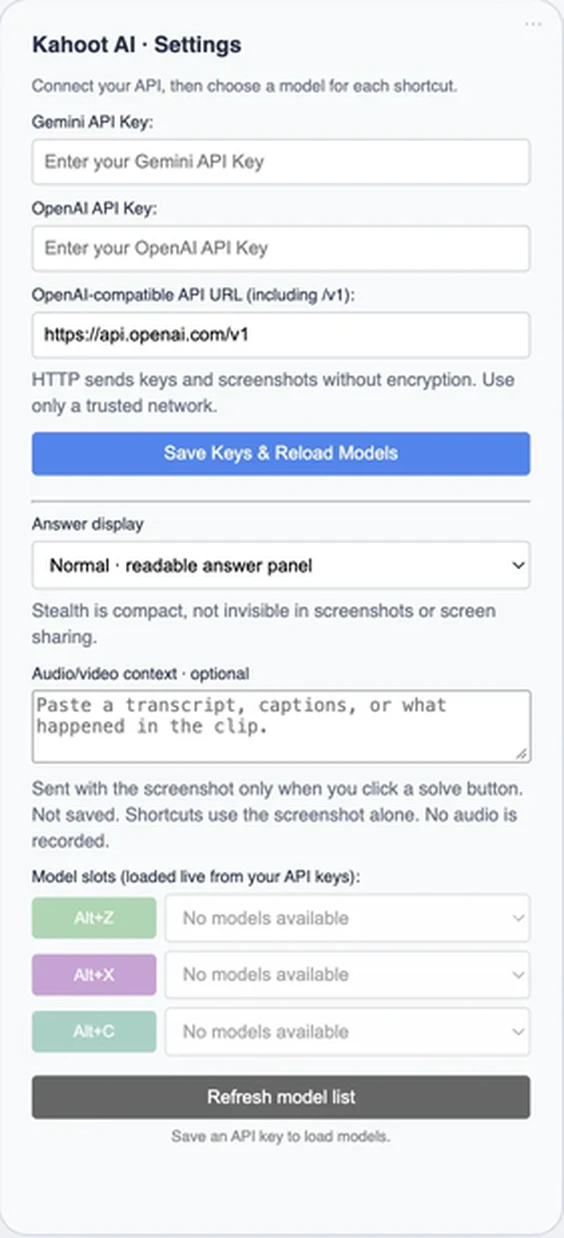
Assign a model to each shortcut from your Gemini, OpenAI or compatible API account. Models load from your provider, and you can refresh the list when new ones become available.
Models that report no image support are left out. Others may still reject an image request, so test your choices on a practice quiz.
How to connect a modelAnswers beyond the four colors.
The suggestion is based on the question and options visible in the screenshot. These are sample answers, drawn the way the extension displays them.
-
One answer
Single choice and true/false. Normal mode colors the panel to match the answer. Stealth shows a dot.
■ GREENNormal■Stealth -
Several answers
For questions with more than one correct option.
Select all: ▲ ■ red, green -
Typed text
For type-your-answer questions.
photosynthesis -
An order
For puzzle questions where you arrange the options.
1. Seed 2. Sprout 3. Flower -
A number
For slider questions.
42 -
Not enough on screen
The model is asked to report when the screenshot does not contain enough information.
Cannot determine: Missing information
AI suggestions can be wrong, and not every quiz format is supported.
Set it up once.
-
Open AI settings
Install the extension, click its icon, then click ··· in the top-right corner. That opens AI settings in the current store release (v1.4.0).
-
Connect your API
Enter a Gemini key, an OpenAI key, or both, then click Save Keys & Reload Models. For a compatible server, enter its URL including
/v1and approve Chrome’s access prompt. -
Pick a model for each slot
Choose models that accept image input. Open a practice quiz, make sure the question and options are visible, and press the shortcut.
Before you install
Questions or bug reportsDo I need my own API key?
Yes. Connect a Gemini, OpenAI or compatible API account. No keys or AI credits are included; your provider may charge for requests.
Why does the popup say “Youtube Ad Blocker”?
The current store release (v1.4.0) has an old cover screen. Click ··· to open AI settings; it does not block ads. The v1.4.1 update uses the Kahoot AI Solver name and a Settings button. It has been submitted for review and is not yet published.
Does it click or submit answers for me?
No. You review the suggestion, choose an answer and submit it yourself. Use assistance only where your school or quiz host allows it.
How do Normal and Stealth differ?
Normal shows a readable answer panel for 15 seconds. Stealth uses an 8-second corner indicator: a colored shape for single-choice answers or a compact text box for other formats. Both can appear in screenshots and screen sharing.
Does it work for audio or video questions?
It does not record audio or upload video. Paste a transcript, captions or your own notes into the Audio/video context field in settings, then click a solve button in the popup. The text is sent with the screenshot, is not saved, and is cleared when the popup closes. Keyboard shortcuts send only the screenshot.
Can I use every model in the list?
Not always. A listed model may still reject an image request. Try your choice on a practice quiz. For compatible-server requirements, see the setup guide.